Set up Thunderbird email program to use encrypted communication

Set up Thunderbird email program to use encrypted communication

To set up the e-mail program, follow these steps:


The first step

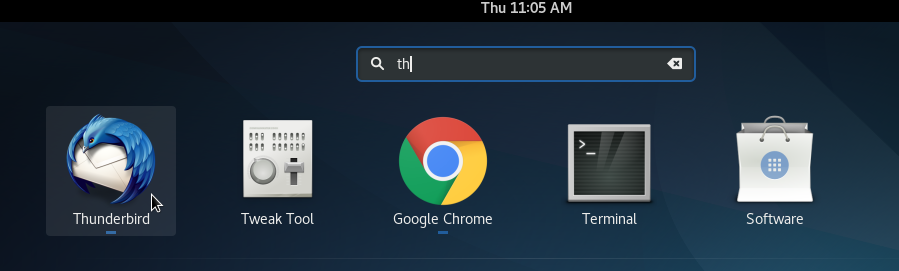
  • Open Thunderbird

The second step

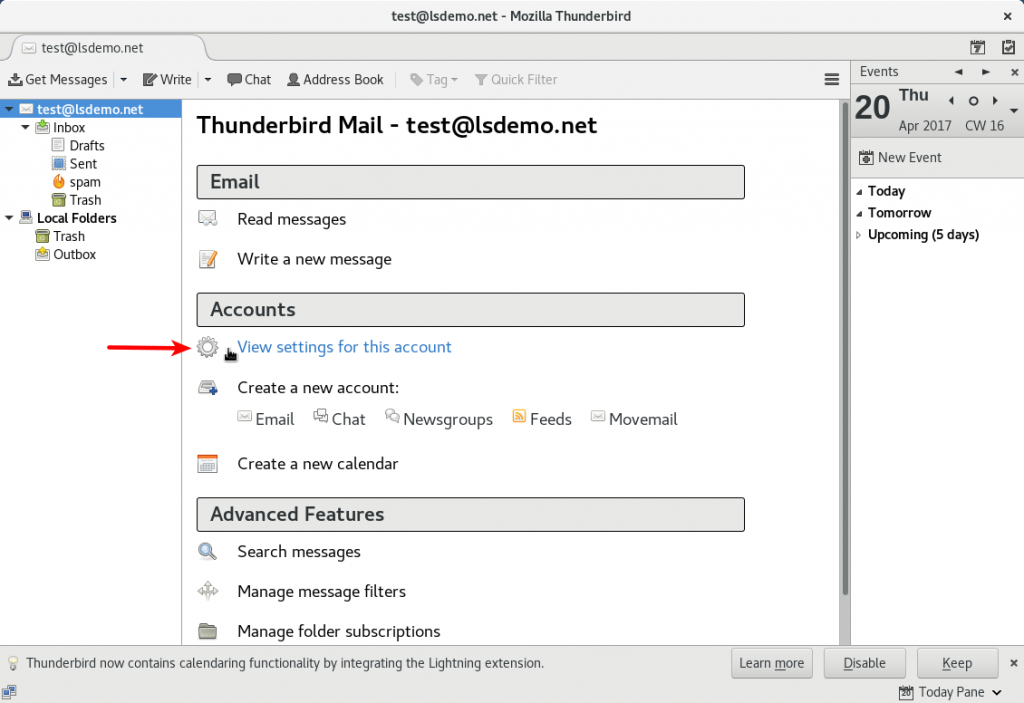
  • Under the Accounts section click on View settings for this account


The third step

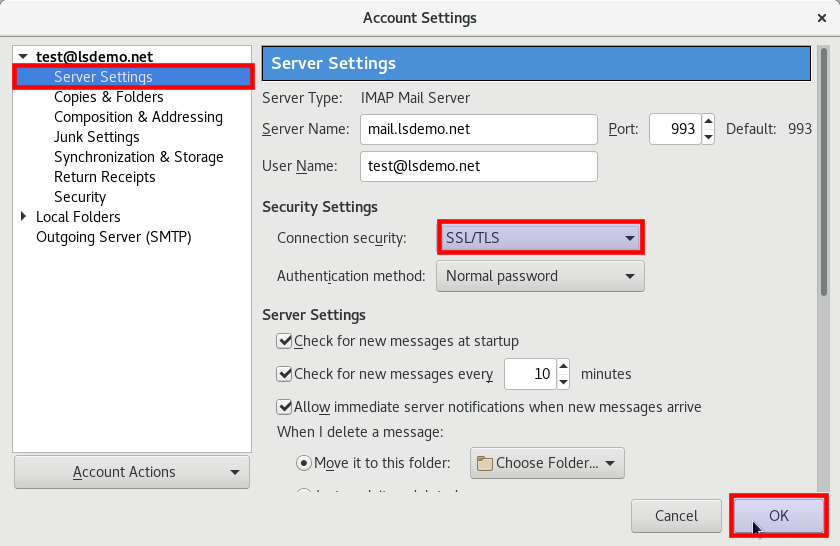
  • on the left, click on  Server Settings under the email you wish to modify.

  • Ensure that Server Name is written in this format

    • <mail.<yourdomain

  • Choose SSL/TLS in front of Connection Security (connection protection type)

  • Click on OK


The fourth step

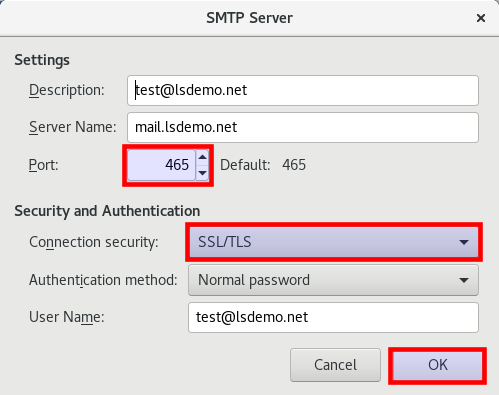
  • From the Settings menu choose Outgoing Server (SMTP)
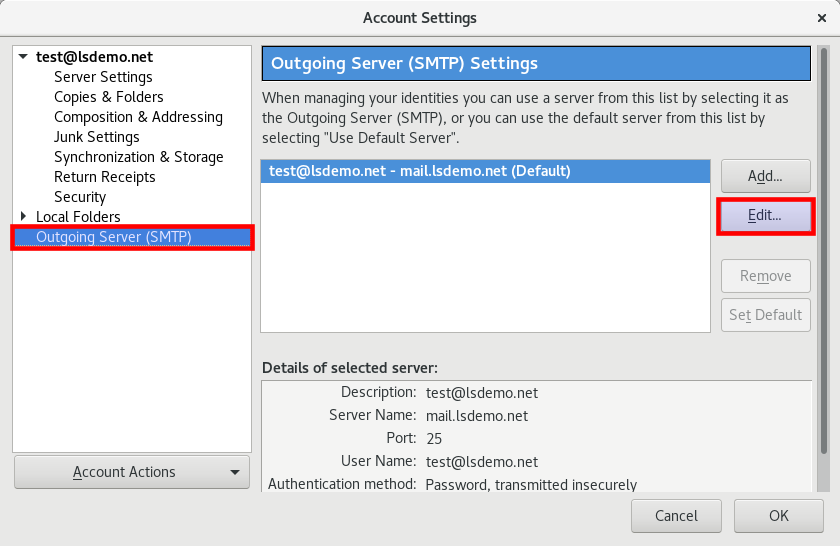
Press OK to save the settings

The fifth step

  • Select the SSL/TLS connection protection type

  • Change port to 465

  • press OK to save the settings

The sixth step

Try sending and receiving messages with the email you set up


  • ثندربيرد, Thunderbird, SSL, TLS, SMTP, encrypted communication, الاتصال المشفر, البريد الإلكتروني, email
  • 48 Users Found This Useful
Was this answer helpful?

Related Articles

I was unable to send mail or receive from Outlook

I was unable to send mail or receive from Outlook Email sending issues may vary depending on...

كيفية اعداد تفضيلات خاصة لحجم صندوق الوارد أو للسياسات المتعلقة بالرسائل الغير مرغوبة (السبام)

كيفية اعداد تفضيلات خاصة لحجم صندوق الوارد أو للسياسات المتعلقة بالرسائل الغير مرغوبة (السبام)...

كيفيةإعداد توقيع إلكتروني لرسائل البريد الإلكتروني الخاصة بك؟

  في Gmail: قم بتسجيل الدخول للايميل الخاص بك وانتقل إلى صندوق الوارد في Gmail.   انقر...

لماذا تتلقى معظم الرسائل في صندوق الرسائل المهملة (السبام) على استضافة الموقع؟

بشكل عام، قد لا يكون الأمر مرتبطًا بخدمة الاستضافة نفسها عندما يتعلق الأمر بعدم وصول رسائل...

الفرق بين الايميل الرسمي والمجاني

  البريد الإلكتروني الرسمي: اسم المستخدم: اسم النطاق + اسم المستخدم (مثال:...